
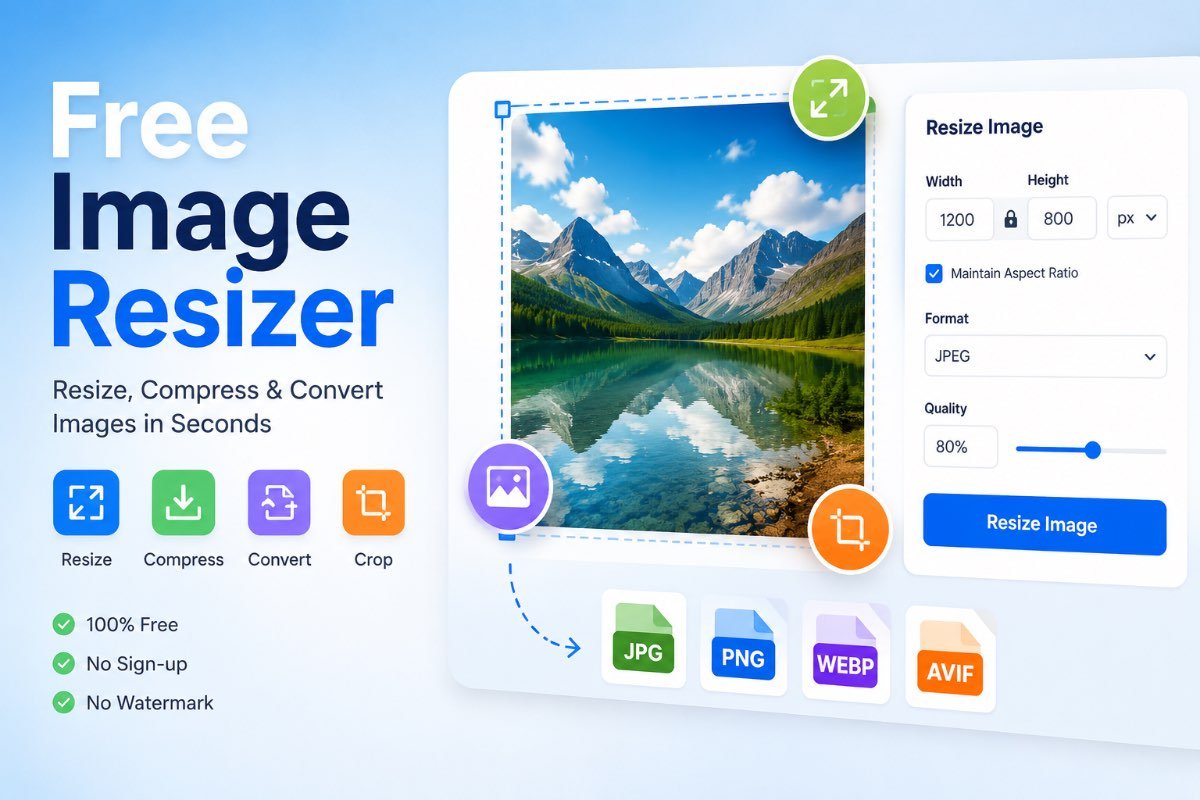
Image resizer Free
Drag & drop image, or click to select
Final Image Preview
Resize PNG Images Online
Need to make a PNG image smaller, larger, or fit a specific dimension? A PNG resizer lets you change image dimensions while keeping your PNG format and, when supported by the image, its transparent background.
With Free Image Resizer, you can resize PNG images directly in your browser without installing desktop software.
PNG is one of the most useful image formats when you need clean graphics, sharp edges, text, logos, icons, screenshots, or transparency. The PNG specification is designed around lossless image storage and supports transparency through alpha information. :contentReference[oaicite:1]{index=1}
The problem is that PNG files can sometimes be much larger than needed. An image may have a large pixel dimension even though it is displayed at a much smaller size. Resizing it to sensible dimensions can make it easier to use on websites, documents, presentations, and social platforms.
What Is a PNG Resizer?
A PNG resizer is an image tool that changes the pixel dimensions of a PNG file. For example, a 2400 × 1600 PNG can be resized to 1200 × 800 pixels while keeping the same general image proportions.
Resizing changes the image’s dimensions. It is different from simply changing the CSS width of an image on a website. When you resize the actual PNG file, the exported image itself contains the new pixel dimensions.
Why Resize a PNG Image?
There are many reasons to resize a PNG. The right dimensions depend on where the image will be used and how large it needs to appear.
Website Images
Large PNG files can contain far more pixels than a page actually needs. Resizing can help you create a more appropriately sized asset.
Logos and Icons
Logos and interface graphics often need exact dimensions for consistent placement across a website or application.
Social Media
Some platforms and designs work better when an image is prepared at a specific pixel size before uploading.
Documents
Oversized PNG screenshots and graphics can make documents unnecessarily heavy or difficult to manage.
Does Resizing a PNG Remove Transparency?
Resizing a PNG does not inherently require removing transparency. PNG supports transparency information, including alpha channels that can represent fully transparent, partially transparent, and opaque pixels. :contentReference[oaicite:2]{index=2}
However, what happens during export depends on the image-processing tool and the selected output format. If transparency is important, make sure your resizing workflow keeps the PNG output and preserves the transparent areas.
How to Resize a PNG Image Online
If you only need to change the dimensions of a PNG, an online PNG resizer can be much faster than opening a full image-editing application.
- Open the PNG resizer. Start with the PNG resizing tool on FreeImageResizer.net.
- Upload your PNG image. Select the PNG file you want to resize.
- Choose the new dimensions. Enter the desired width, height, or other available sizing options.
- Check the aspect ratio. If you want to prevent stretching, keep the original proportions locked when the tool provides that option.
- Preview the result. Check that the resized image still looks sharp and that important transparent areas remain correct.
- Download the resized PNG. Save the new image once you are happy with the result.
PNG Dimensions, Pixels and Aspect Ratio
Understanding image dimensions makes resizing much easier.
What Are Image Dimensions?
Image dimensions are normally written as width × height in pixels. A PNG that is 1600 × 900 pixels is 1600 pixels wide and 900 pixels tall.
What Is Aspect Ratio?
Aspect ratio describes the proportional relationship between an image’s width and height. A 1600 × 900 image has a 16:9 aspect ratio.
Keeping the original aspect ratio is important when resizing photographs, illustrations, screenshots, and other graphics that should not appear stretched or squeezed.
| Original | Example Resize | Aspect Ratio | Typical Use |
|---|---|---|---|
| 1920 × 1080 | 1280 × 720 | 16:9 | Wide graphics and video-related images |
| 1600 × 1200 | 800 × 600 | 4:3 | Classic screen and document graphics |
| 1200 × 1200 | 800 × 800 | 1:1 | Square graphics and social designs |
| 1200 × 675 | 800 × 450 | 16:9 | Website and media thumbnails |
These are examples rather than universal requirements. Always check the specifications of the website, platform, application, or document where you plan to use the image.
What Is the Best PNG Size?
There is no single best PNG size for every situation. The correct size depends on how large the image needs to be displayed.
A useful rule is to avoid keeping a huge image when the final display area is much smaller. For example, if a graphic will normally be shown at around 600 pixels wide, exporting a 4000-pixel-wide version may be unnecessary for that particular use.
Does Resizing PNG Reduce Quality?
It depends on whether you are making the image smaller or larger and how the resizing process is performed.
Downscaling a PNG
When you reduce dimensions, the image has fewer pixels. A good resampling method can produce a clean result, but tiny text and fine details may become less visible at smaller dimensions.
Upscaling a PNG
Increasing dimensions cannot magically create the original detail that was not present in the smaller image. A resized-up PNG can therefore look softer, especially when the original image was already small.
Lossless Does Not Mean Unlimited Detail
PNG’s lossless nature means its compression process is designed to preserve image information rather than intentionally discard it. :contentReference[oaicite:3]{index=3} It does not mean that enlarging a low-resolution image will recreate missing photographic detail.
PNG vs JPG for Resized Images
PNG and JPG are designed for different strengths.
| Feature | PNG | JPG |
|---|---|---|
| Compression | Lossless compression | Lossy compression |
| Transparency | Supported | Not supported in standard JPEG images |
| Logos / icons | Often a strong choice | Usually less suitable |
| Photographs | Can work, but may be large | Often efficient for photographs |
| Text / sharp graphics | Often very suitable | Compression artifacts may appear |
If the image contains transparency, crisp interface graphics, or screenshot-style content, PNG may be a better fit. For many photographic images, another format may produce a substantially smaller file.
PNG vs WebP: Which Should You Use?
WebP can provide efficient image compression and supports transparency, making it useful for many modern websites. PNG remains useful when you specifically need its lossless workflow, compatibility, or PNG-based editing pipeline.
The best format depends on the image and its destination. Do not convert every PNG automatically just because another format can produce a smaller file.
Common PNG Resizing Mistakes
1. Stretching the image
Entering an unrelated width and height can distort the image. Keep the aspect ratio locked when you want the original proportions preserved.
2. Making an image much larger than necessary
Bigger dimensions are not always better. Excessive dimensions can create unnecessarily large assets and may not provide any visible benefit at the final display size.
3. Enlarging a tiny image too aggressively
Upscaling can make edges and small details appear soft. If possible, start with a higher-resolution original.
4. Removing transparency by accident
If the original PNG has transparent areas, make sure your output workflow preserves transparency when it matters.
5. Confusing dimensions with file size
A PNG can have smaller dimensions and still have a relatively large file size. If your goal is specifically to reduce KB or MB, you may also need an image compression workflow.
Common Uses for PNG Resizing
- Resizing website logos
- Preparing transparent product graphics
- Adjusting app and interface icons
- Reducing oversized screenshots
- Preparing presentation graphics
- Creating smaller versions of illustrations
- Adjusting social media graphics
- Preparing images for online forms
- Creating email graphics
- Making multiple image sizes for different layouts
For more browser-based image tools, visit FreeImageResizer.net.
Tips for Better PNG Images
- Start with the original file. Avoid repeatedly resizing the same already-resized image when possible.
- Choose dimensions based on actual use. Think about the size at which the image will be displayed.
- Preserve aspect ratio. This prevents unwanted stretching and squeezing.
- Keep transparency when needed. PNG is particularly useful when transparent areas are part of the design. :contentReference[oaicite:4]{index=4}
- Preview before downloading. Check small text, thin lines, edges, and transparent areas.
- Do not resize blindly. If the real problem is file size rather than dimensions, consider compression as a separate step.
Frequently Asked Questions
Can I resize a PNG image online?
Yes. An online PNG resizer can change the pixel dimensions of a PNG without requiring traditional desktop image-editing software.
Can I resize PNG without losing transparency?
Yes, provided the resizing and export process preserves the PNG’s transparency information. PNG supports transparency and alpha information. :contentReference[oaicite:5]{index=5}
What does PNG resizing change?
PNG resizing changes the image’s pixel dimensions, such as changing 2000 × 1500 pixels to 1000 × 750 pixels.
Does resizing PNG reduce file size?
It can, especially when the dimensions are reduced, but the final file size depends on the image content and encoding. Resizing and compression are separate processes.
Can I make a PNG larger?
Yes, PNG images can be upscaled. However, enlarging an image does not recreate detail that was not present in the original.
Is PNG better than JPG?
Neither is universally better. PNG is often useful for transparency, logos, icons, screenshots, and lossless graphics, while JPG is often efficient for photographs.
Can I resize PNG images on a phone?
Yes. A responsive browser-based PNG resizer can be used on a phone, tablet, or computer without installing a dedicated desktop editor.
What is the best PNG dimension for a website?
There is no universal dimension. Choose a size appropriate for the image’s actual display area and the requirements of the website or application.
Final Thoughts
A PNG resizer is useful when you need to change the dimensions of a PNG quickly without opening a complicated image editor. The most important things to consider are the target dimensions, aspect ratio, image quality, transparency, and where the final image will be used.
PNG is especially useful for graphics that benefit from lossless storage and transparency. The current W3C PNG specification describes PNG as a lossless image format and documents its support for transparency and alpha information. :contentReference[oaicite:6]{index=6}
If you need a quick way to resize your PNG images, try the free image tools available at FreeImageResizer.net.
Ready to Resize Your PNG?
Resize your PNG image directly in your browser and prepare it for your website, social media, documents, or other projects.
Need to resize a signature or image to a specific file-size range? Try our Signature Resizer 10 to 20 KB.